

Beginner Leatherette: Foldable Beanie Tag + Free Designs
Updated Jun 2026
There's a small detail that separates a homemade-looking beanie from one that looks like it came from a boutique, and it isn't the yarn. It's the tag. That little fold-over strip of leatherette sewn onto the cuff is the first thing a customer's fingers find and the last thing they see before they pull the hat on. It quietly says someone made this on purpose.
Fold-over beanie tags used to mean ordering 50 or 100 from a label supplier, waiting two weeks, and being stuck with one design. With a laser cutter and the right design tool, you can make them on demand, in any quantity, in your own branding, in about ten minutes.
This guide walks through exactly that, using the free Handmade Tag Generator at MyLaserTools. It's a browser-based tool built specifically for leather and leatherette tags, and it has a dedicated Foldable preset that does the tricky part for you. When a tag folds over, the back face would normally end up upside-down. The Foldable preset mirrors the bottom design across the centre crease so everything reads the right way up once folded. We'll cover every control in the tool, give recommended values for beanie tags, and finish with cutting and sewing notes.

What You'll Need
- A laser cutter. CO2 or diode, both cut leatherette well.
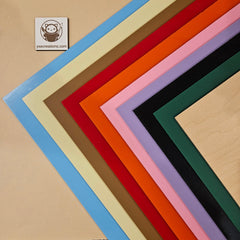
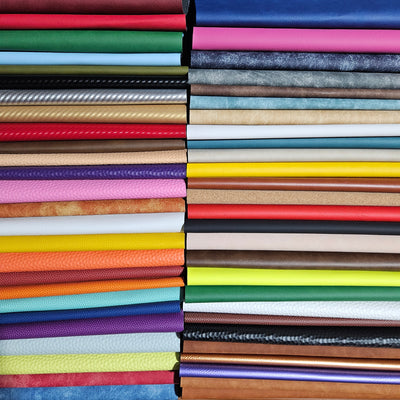
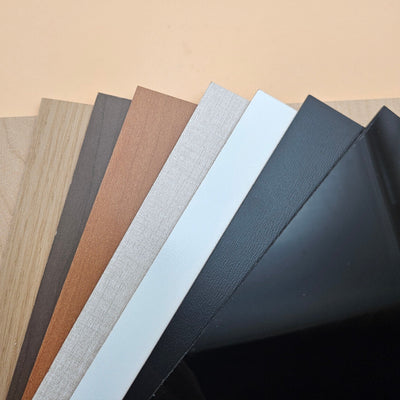
- PU leatherette. This is the material the tool is built around. It cuts cleanly and engraves dark, giving you that classic tan-tag-with-black-text look. Rawhide / Black Leatherette PU
- A web browser. The tool runs entirely in the browser, with nothing to install.
- Your laser software (LightBurn, xTool Creative Space, Glowforge, Epilog, or Trotec) to open the exported SVG.
⚠️ Safety first: Always use PU (polyurethane) leatherette or genuine leather. Never laser PVC. It releases toxic hydrogen chloride fumes that are harmful to you and corrosive to your machine. If a sheet doesn't clearly say PU, don't cut it.

Understanding Fold-Over Beanie Tags
A fold-over tag is a single strip of leatherette that drapes over the edge of the beanie cuff and is stitched down through both layers. Because it folds, your branding shows on the front face, and the back face tucks against the hat or carries a second line such as a care note or your social handle.
The tag is taller than it is wide and folds top-over-bottom at its horizontal centre. In the tool's Foldable preset:
- Top Text becomes the front of the folded tag (your brand name).
- Bottom Text is the back, and the tool flips it so it reads correctly once folded.
The Interface at a Glance
The tool has a row of preset tabs at the top, a settings panel on the left, and a live preview with a colour legend on the right. You work top to bottom through five collapsible sections:
1. Preset tabs: Regular or Foldable
2. Units: mm or inches
3. Shape & Dimensions
4. Holes
5. Stitch Guide
6. Text Engraving
The preview updates instantly, and a Reset button in the panel header returns everything to defaults.

Step 1: Choose the Foldable Preset
At the top, click the Foldable tab.
The two presets are:
- Regular: a flat tag with a single design (top text, a symbol, then bottom text in one column). Best for sew-on patches and hang tags that do not fold.
- Foldable: "Folds in half along the centre, so the top and bottom designs mirror across the fold line." This is the one for beanie cuff tags.
Choosing Foldable sets sensible starting values automatically: it turns on holes along the top and bottom edges, sets the default size to 50 mm wide by 90 mm tall, and enables the mirrored top/back text. You'll fine-tune these in the next steps.
Step 2: Set Your Units
In the settings panel, the Units selector at the very top switches the whole tool between mm and inches . Beanie tags are small, so mm gives you finer control. This guide uses mm.
Step 3: Shape & Dimensions
Open the Shape & Dimensions section.
Tag Shape. Click the shape dropdown to choose from five outlines:
- Rounded Rectangle: the classic beanie-tag look. Clean and brand-forward. Recommended for most beanies.
- Stadium: a softened rectangle with scalloped sides. A bit more decorative.
- Capsule: fully rounded pill ends. Soft and friendly, nice for baby and kids' knitwear.
- Oval: a full ellipse. Works for a single short word.
- Octagon: angular, faceted edges for a rugged or outdoorsy brand.
Dimensions. Set Width and Height (each ranges from 15 mm to 300 mm). Remember the tag folds at its vertical centre, so the visible folded face is half the Height you enter. There's a Lock / Unlock aspect-ratio toggle beside the dimensions if you want width and height to scale together.
Corner Radius. This slider appears only for the Rounded Rectangle. It defaults to 6 mm. A value of 3 mm to 6 mm gives a soft, professional corner.
Step 4: Holes
Open the Holes section. These are the punched holes the laser cuts so you can stitch the tag to the beanie.
- Holes toggle: turn the punched holes on or off. The Foldable preset turns them on.
- Style: choose Top + Bottom, Top, or Corners. For a fold-over tag, Top + Bottom puts a hole near each short edge so you can anchor both ends of the fold.
- Number of Holes / Holes per Edge: pick 1 to 6. With Top + Bottom selected this is labelled "Holes per Edge." One per edge is the default and is plenty for a beanie tag.
- Hole size & spacing (expand this for the advanced controls):
- Hole Diameter: 1 mm to 10 mm. The preset default is 4 mm. For neat hand or machine stitching, 2 mm to 3 mm holds thread better.
- Edge Margin: 2 mm to 15 mm, how far the holes sit in from the edge. The preset default is 7 mm; pull it in to about 4 mm to 5 mm on a slimmer tag.
💡 If you plan to machine-sew the tag down rather than stitch through pre-cut holes, you can turn Holes off and rely on the Stitch Guide in the next step as your sewing line.

Step 5: Stitch Guide
Open the Stitch Guide section. This adds a decorative or functional stitching border just inside the tag edge. It's the detail that makes a tag look professionally finished.
- Stitch Guide toggle: turn it on. (The Foldable preset starts with it off, so switch it on if you want the sewn look.)
- Style: choose one of three.
- Line: a clean solid border line.
- Stitch: a dashed line that mimics real stitching. The most popular look for beanie tags.
- Holes: a row of small punch holes to physically stitch through.
- Offset from Edge: 1 mm to 15 mm, how far the guide sits in from the outline. Default is 4 mm; 2 mm to 3 mm suits a slimmer tag.
- *Hole Size:* appears only when Style is set to Holes (0.3 mm to 3 mm per hole).
A useful detail: when the style is Line or Stitch, the guide exports on the score layer (a light surface line). When it's Holes, it exports on the cut layer instead, because those are cut all the way through.
Step 6: Text Engraving
Open the Text Engraving section and switch it on. Because you're in Foldable mode, you get a front line and a back line, plus an optional symbol.
Symbol. Use the symbol picker to drop an icon (a heart is the default) between your text. The label reads Symbol (both halves) in Foldable mode. Below it:
- Symbol Size: 20% to 200%.
- Symbol top / Symbol bottom: toggle buttons that decide whether the symbol appears on the front, the back, or both.
Top Text (front). This is your front face, labelled "Top Text · front." The placeholder shows the default Sew Cute. Under the text box:
- Font selector with a full library organized by category.
- Size: 20% to 200%.
- Move X / Move Y: nudge the text by -30 mm to +30 mm to centre it perfectly.
Bottom Text (back, flipped). Labelled "Bottom Text · back (flipped)," with the default Handmade / with love across two lines. Same font, size, and Move X / Move Y controls. The tool flips this automatically so it reads correctly when folded.
Fonts. The tool ships a large font library. The defaults are Grand Hotel for the top and Dancing Script for the bottom, both warm scripts that suit handmade tags. You can pick any font from the category list.
💡 Legibility check: On a tag in the 40 mm to 50 mm width range, keep the front to one short word or two and bump the Size up until it nearly fills the face. Thin script strokes can disappear on textured leatherette, so favour a slightly bolder script and check the preview at the size shown in the dimensions readout.
Step 7: Check the Layers and Download
The preview has a colour legend showing how your design splits into laser operations:
- Tag Outline & Holes on the cut layer (cut all the way through). Shown in red.
- Stitch Guide on the score layer for Line and Stitch styles, or on the cut layer for the Holes style. Score is shown in teal.
- Text / Symbol on the engrave layer (burned into the surface). Shown in blue.
Step 8: Cut and Engrave
Open the downloaded SVG in your laser software and map the layers by colour:
- Blue (engrave) to raster or fill engrave (text and symbol)
- Teal (score) to a light vector score (the stitch guide, if you used Line or Stitch)
- Red (cut) to vector cut (outline and holes)
Operation order matters. Run engrave first, score second, cut last. If you cut the outline before engraving, the freed tag can shift and the text will be off.
Run a small test tile with all three operations before committing to a full sheet. You want dark, legible engraving, a clean stitch guide, and clean cuts with no scorching around the holes.

Step 9: Fold and Attach to the Beanie
1. Crease the fold. Bend the tag in half at its centre. Leatherette holds a crease well; press firmly with your fingers or a bone folder.
2. Position on the cuff. Drape the folded tag over the edge of the cuff (or lay it flat on the cuff face), front branding facing out.
3. Stitch it down. Sew through the pre-cut holes by hand, or run a machine line along the stitch guide. Contrast thread (for example black on tan) emphasizes the handmade detail.
4. Secure both layers. Stitch through the front and back of the fold so it can't flip up in the wash.
💡 Stitched flat is the most secure attachment. For everyday beanies, sewing the fold down flat is the durable choice.
Troubleshooting
My back text comes out upside-down when folded.
Make sure the Foldable preset tab is selected. Foldable flips the bottom (back) text automatically; the Regular preset does not.
Engraving is faint or hard to read.
Use the "Black Engraves" rawhide leatherette, slow the engrave speed slightly, and pick a bolder script. Thin decorative fonts can wash out on a small tag.
The holes are too big and thread won't stay.
Open Hole size & spacing and drop the Hole Diameter to 2 mm, and pull the Edge Margin in so the stitch line sits closer to the edge.
The text feels cramped.
Increase Height before Width. A taller tag gives more room per face after folding without making the tag look wide on the cuff. You can also use the Move X / Move Y sliders to recentre each line.
There's no fold line on my cut file.
That's expected. The tool does not score a fold line. Fold the tag in half by eye at its centre and crease it.
Variations to Try
- Care-label fold-over: brand name on the front, wash instructions on the mirrored back.
- Capsule baby tags: Capsule shape at about 30 mm by 60 mm with a soft script, ideal for newborn knitwear.
- Flat sew-on patch: switch to the Regular preset with Corners or Top + Bottom holes for a patch sewn onto a sweater or bag.
- Matching set: make a Foldable beanie tag and a Regular hang tag with the same font and stitch style for a cohesive branded set across your knitwear line.
