


Beginner Acrylic: Custom Earrings + Free Designs
Updated May 2026TL;DR: The earrings generator builds a laser-ready earring from a library of shapes, no drawing required. Stack up to three shapes into one design, set each one's size and style, and fill any shape with a cut pattern like leaves, ripple waves, or wood grain. Add the jump ring holes, then download an SVG for your laser or Cricut, or an STL or 3MF for 3D printing. This guide covers the shapes, the styles, and how to build a design that cuts clean.

What the earrings generator is
You build an earring out of up to three shapes stacked together, set the size and style of each, and download the file. The tool produces a clean single-layer cut file, so what comes off the machine looks intentional rather than improvised.
It also outputs more than laser files. Alongside the SVG for cutting, it produces STL and 3MF files for 3D printing, so the same design can be cut on a laser, cut on or printed.
The shape library
You build a design from a set of ten shapes. In the shape menu they are:
- Circle
- Half Circle and Half Circle (Inverted)
- Arch Up and Arch Down
- Cutout Arch (an arch with the centre removed, the rainbow-band look)
- Octagon
- Square
- Drop
- Cloud
Each one resizes independently, with a diameter you can take from small studs up to large statement pieces.
Three styles for every shape
This is where a plain shape becomes a design. Each shape can be set to one of three styles:
- Solid. The filled shape, a clean silhouette.
- Outline. Just the outline of the shape, hollow in the middle, with an outline thickness you control. Lighter on the ear and great for layering.
- Pattern. The shape filled with a cut-through pattern. The pattern options are Leaves, Leaf Veins, Organic Flow, Palm Leaves, Ripple Waves, and Wood Grain. Because the pattern is cut through the material rather than engraved, it works the same on any laser and reads beautifully in acrylic or wood.
(The Cutout Arch is always solid, since the cutout is the design.)
The real trick: stacking shapes into one earring
You are not limited to a single shape. The generator gives you three segments, and each can be turned on or off, so you can build a layered earring out of one, two, or three shapes stacked together.
The default design shows the idea: a Half Circle on top, a Circle in the middle, and a Drop at the bottom, stacked into a dangle. Swap any segment for a different shape, give each its own style and pattern, and you get a design that is genuinely yours. An arch up top with a leaf-pattern circle below it, a Cutout Arch over a solid drop, a stack of three octagons in graduating sizes. This is the mix-and-match part, and it is the fastest way to land on a look that does not exist as an off-the-shelf file.

Jump ring holes
Two toggles control where the earring connects:
- Top Hole adds a jump ring hole at the top so the earring hangs from a hook. On by default.
- Bottom Hole adds a hole at the bottom, so you can link another piece, a charm, or a second dangle below.
A single Jump Ring Hole Size slider sets the diameter for both, anywhere from 0.8mm up to 5mm. For 3mm acrylic or plywood, a 2mm hole is the sweet spot, large enough for a standard 20-gauge jump ring without weakening the piece.
What you need
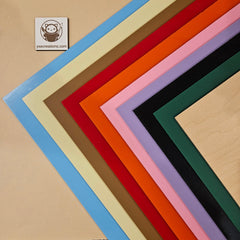
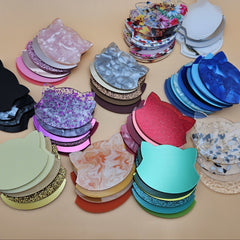
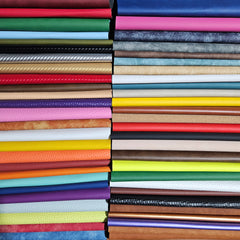
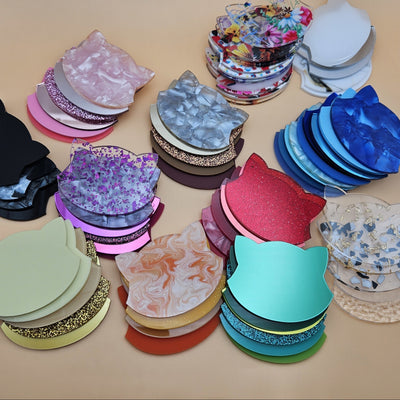
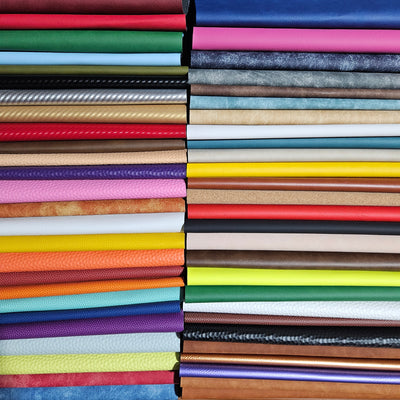
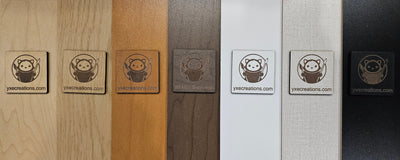
- Your earring material. The same design cuts from 3mm acrylic (clean, colourful, photogenic), 1mm PU leatherette (ultra-light, ideal for big statement pieces), or 3mm plywood (warm and natural). The STL or 3MF output lets you 3D print instead.
- A laser cutter or a craft cutter (Cricut, Silhouette), or a 3D printer if you are using the STL or 3MF file.
- The free earrings generator on MyLaserTools.
- Earring hardware: jump rings and hooks, ideally hypoallergenic titanium or niobium for sensitive ears.
Step by step
Step 1: Set up the first shape.
Open the earrings generator. Segment 1 is open by default. Pick a shape from the menu and set its diameter. The preview updates as you go, and you can switch units between millimetres and inches.

Step 2: Choose a style.
Set the shape to Solid, Outline, or Pattern. If you choose Outline or Pattern, an outline thickness slider appears so you can set how heavy the lines are. If you choose Pattern, pick one of the six patterns (Leaves, Leaf Veins, Organic Flow, Palm Leaves, Ripple Waves, Wood Grain).
Step 3: Add a second and third shape (optional).
This is the mix-and-match step. Turn on Segment 2 and Segment 3 with their toggles, then give each its own shape, size, and style. They stack to form a single layered earring. Keep going until the preview shows the dangle you want, or leave it as a single shape if that is the look.
Step 4: Set the jump ring holes.
Set the Jump Ring Hole Size, then toggle the Top Hole on so the earring can hang. Turn on the Bottom Hole as well if you want to link a charm or another piece beneath it.
Step 5: Download your file.
For laser or craft-cutter work, click Download SVG. For 3D printing, download the STL or 3MF and set the extrusion depth (the thickness of the printed piece) first. Name the file for the design, like arch-circle-drop-acrylic.svg, so you can reuse it.
Step 6: Cut, and assemble.
Open the SVG in your laser or cutter software and cut with your normal settings for the material: acrylic in one clean pass with air assist, leatherette fast and low power, plywood masked and tested first. Then attach a jump ring through each hole, opening and closing it with a sideways twist rather than pulling it apart, and add your hook. If you stacked segments and want them in different materials, cut each piece separately and link them with jump rings through the holes.
Designing a balanced pair
The generator designs one earring. For most symmetric shapes you simply cut two and they match. If your design is asymmetric (a Drop tilted one way, an off-centre stack), cut one, then flip the file in your laser or cutter software and cut the second so the pair mirrors on the face instead of leaning the same way twice. It is a quick manual step, and it is the difference between a pair that looks finished and one that looks slightly off.
Design rules that keep your cut clean
A generated shape is only as good as the rules behind it. The tool keeps you mostly safe, but these limits are worth knowing:
- Minimum feature size. Nothing narrower than the material thickness. For 3mm acrylic, keep every neck and outline at least 3mm wide. The Outline style at a thin setting is where pieces get fragile, so do not push the outline thickness too low on a small shape.
- Pattern detail and material. The cut patterns put a lot of fine lines into the piece. Cast acrylic and plywood hold them well; very thin or brittle stock can lose the finest strands. Test a pattern shape before a full run.
- Hole walls. A jump ring hole near an edge can crack under load. The tool places the holes for you, but keep the hole size sensible for the material (2mm for 3mm stock).
- Kerf. The laser removes about 0.2mm as it cuts. It does not matter for a jump ring hole, but if you are press-fitting one piece into another it does. See our kerf guide.
Tips and gotchas
Cut your first design on a scrap before you commit a full sheet. Stacked and patterned designs have more fine features than a plain silhouette, so a quick test cut tells you whether any outline or pattern strand is too thin before you waste good material.
Use cast acrylic, not extruded. Cast cuts cleanly and frosts to white if you ever engrave it; extruded is weaker and engraves poorly. For these cut-and-pattern designs, cast is the answer. Our guide to cast vs extruded acrylic explains why.
Never put PVC leatherette in a laser. It releases corrosive, toxic gas. Always confirm your faux leather is PU before cutting. See PU vs PVC leatherette.
Watch the weight on big pieces. Oversized earrings are on trend, but 8 grams and up stretches earlobes over a day. For a large design, the Outline style or a cut Pattern removes material and lightens the piece, and leatherette is almost weightless to begin with.
Mirror your asymmetric pairs. Worth repeating: the tool makes one earring, so flip the file for the second if the design is not symmetric.
Fume extraction, every time. Acrylic, leatherette, and plywood all produce fumes you should not breathe. Vent outside or run a proper extractor on every cut.
Then card it and stand it
A finished design deserves finished presentation. Run a matching earring card and display stand from the same set of free tools so the whole thing reads as one collection: earring cards and an earring holder.
Frequently asked questions
Q: Do I need design software to use the earrings generator? A: No. The shapes are already drawn. You pick shapes, set sizes and styles inside the tool, and download a finished file. No Illustrator or Inkscape required.
Q: How do I combine more than one shape? A: The tool gives you three segments. Turn on Segment 2 and Segment 3 and give each its own shape, size, and style. They stack into one layered earring, like the default Half Circle, Circle, and Drop. Leave the extra segments off for a single-shape design.
Q: What shapes are available? A: Circle, Half Circle, Half Circle Inverted, Arch Up, Arch Down, Cutout Arch, Octagon, Square, Drop, and Cloud. Each can be solid, an outline, or filled with a cut pattern.
Q: What are the pattern options? A: Leaves, Leaf Veins, Organic Flow, Palm Leaves, Ripple Waves, and Wood Grain. They are cut through the material rather than engraved, so they work on any laser and look great in acrylic or wood.
Q: What files can I download? A: An SVG for laser cutting and craft cutters like Cricut and Silhouette, plus STL and 3MF for 3D printing. For the 3D files you set an extrusion depth, which is how thick the printed piece will be.
Q: Can I make a matched left and right pair? A: The tool designs one earring. For symmetric shapes, cut two. For an asymmetric design, cut one and then flip the file before cutting the second so the pair mirrors on the ear.
Q: What materials can I cut these in? A: Acrylic for clean colourful pieces, PU leatherette for ultra-light statement earrings, and plywood for a natural look. The same SVG cuts in all three, and the STL or 3MF lets you 3D print instead.
Q: Can I sell earrings I design with this tool? A: Yes. The generator and the files it produces are free to use commercially. Design, cut, and sell as much as you like.