

Beginner Acrylic: Business Card Holder Sign + All Designs Included
Updated May 2026A three-panel business sign is the most useful project in this series, it doubles as both branding and a card holder. Front panel holds business cards in a slot, middle panel shows your logo or a decorative pattern, and the back panel carries your tagline or "Thank You" message. All three slot into one shared base, no glue or screws.
It's perfect for trade show booths, salon and barber stations, market stalls, real estate showings, photographer pop-ups, and bridal vendor tables.
In this guide we'll walk through the materials, the kerf settings that make every slot fit cleanly, and how to use the Standing Sign Generator's Business Sign preset.
What you'll make
Three coordinated panels of different sizes:
1. A short front panel that acts as a card holder, its slot in the stand is sized to also hold a stack of business cards
2. A medium middle panel with a pattern, logo, or printed image
3. A tall back![]() panel with your tagline or thank-you text.
panel with your tagline or thank-you text.
All three sit on a single rectangular stand.

Materials you'll need
The acrylic panels
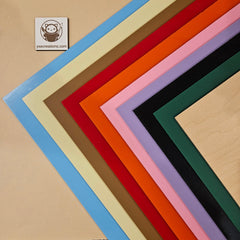
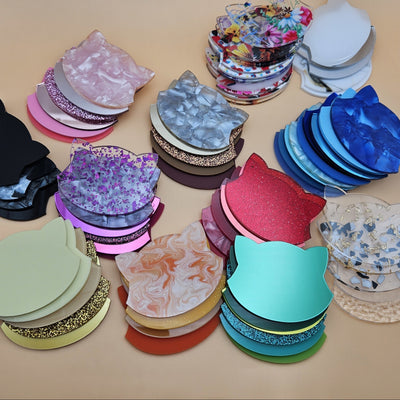
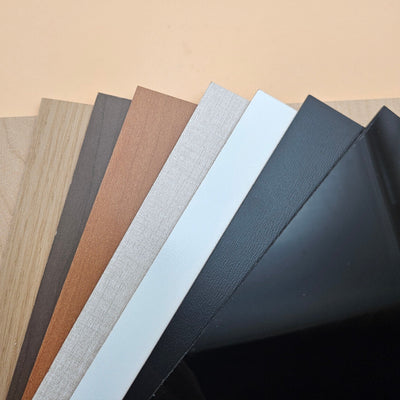
For business signs, 3mm cast acrylic is the standard, clean edges, professional finish, easy to work with. Mixing finishes can really elevate the look:
- Front panel (cardholder): clear or frosted, so the card design shows through
- Back panel: black, white, or a contrasting color so the text reads from across a booth
The stand
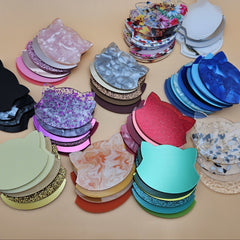
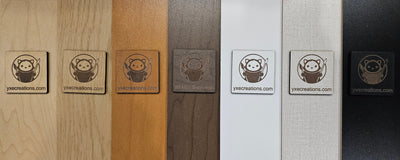
For a polished business look, cut the stand from acrylic to match the panels. For a warmer, handmade-craft vibe (great for markets, makers' fairs), laser plywood is a beautiful contrast against acrylic panels.
Logo or pattern panel
If your middle panel is your logo, you have several options:
- Engrave it into clear or frosted acrylic, clean and timeless
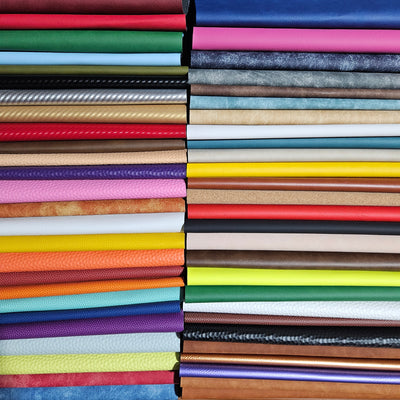
- Print it on [next-level printed sheets], full color, perfect for branded designs with gradients or photographs
- Put a sticker or waterslide decalls
- Sublimate it on sublimatable materials
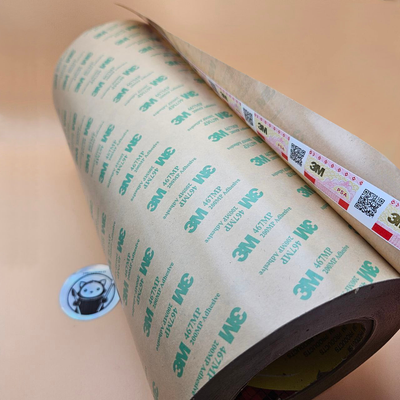
3M adhesive sheets — really useful here
If you want stick-on raised letters for the back panel (instead of engraved or cut-through letters), or to layer your logo as a separate piece on top of the middle panel, 3M adhesive sheets make this clean and permanent. Apply 3M to the back, cut your letters, peel and stick.
Understanding kerf: three slots, three chances to get it wrong (and right)
A three-panel sign is the most demanding project for slot fit. You've got three slots in the stand, each one needs to grip its panel firmly. Get the kerf wrong and the whole sign leans, wobbles, or won't assemble.
When the laser cuts a slot, it removes a thin strip of material along the cut path: the kerf, usually 0.10–0.20mm wide. Without compensation, every slot ends up wider than the panel by twice the kerf, and panels rattle.
The generator's Kerf Offset field tells the slot to shrink by exactly that much, producing a tight friction fit.
Special note for the cardholder slot
The front panel slot also needs to hold a stack of business cards. Standard business cards are ~0.35mm thick, and a stack of 10–15 cards is ~4–5mm. The Business Sign preset is set up so the front panel sits forward enough that there's room for cards behind it, but if you want to hold a thicker stack, increase the Panel Gap between the front and middle panels by 2–3mm.
Always cut a stand-only test first. It takes 30 seconds and saves a sheet.
Designing your sign with the generator
Open the Standing Sign Generator and select the Business Sign preset (third tab). This loads a 3-panel layout: a small front cardholder panel, a medium pattern panel, and a tall text panel.

Step 1: Front panel (cardholder)
Click Panel 1 to expand it. This is the small front panel that doubles as your business card front.
- Type: leave as "Solid" if you want it to be a clean front for cards to sit behind. Switch to "Text" if you want something engraved (e.g., "Take One")
- Width / Height: default 50×50mm. Adjust to be slightly wider than your business cards (cards are ~89mm × 51mm, so try 95×55mm to comfortably hold cards landscape, or 60×95mm for portrait)
- Shape: Rectangle keeps it clean and businesslike
Step 2: Middle panel (logo / pattern)
Click Panel 2.
- Type: "Pattern" for a generated decorative pattern, "Solid" if you'll engrave a logo or apply a printed sheet
- Pattern options (if Pattern type), Voronoi for organic; Hexagonal for tech/modern; Hilbert for retro/maker-style; Waves for soft/elegant
- Width / Height: default 110×90mm works well; scale to fit the proportions of your logo if you're applying one
Step 3: Back panel (text / tagline)
Click Panel 3. This is your tall back panel where your tagline or "Thank You" text lives.
- Text: "Thank You" (default), or your tagline ("Hand-crafted in Saskatoon", "Book your next appointment", "Stay caffeinated")
- Font: match it to your brand. Script for elegant; bold sans for modern; vintage display for craft/maker
- Text Y: slide this to position the text near the bottom of the panel (the preset uses -38 to push text down) so it sits below where the front panels overlap
- Width / Height: default 110×160mm
Step 4: The stand
Scroll to the Stand section.
- Stand Shape: Rectangle is the most stable for 3 panels; Arch is softer
- Panel Gap: 14mm default; increase to 16–18mm if the front cardholder needs to hold a thicker stack of cards
- Stand Height: 55mm default; increase if you want the panels to sit higher off the table
- Stand Length: auto-sizes; override if you want a wider, heavier-looking bas
Step 5: Material thickness and kerf
This is the most important step for a 3-panel sign.
- Material Thickness: 3mm if you're cutting standard acrylic
- Kerf Offset: 0.10–0.15mm for acrylic, 0.15–0.20mm for plywood
Step 6: Download your SVG
Click Download SVG. You'll get a single file with all three panels and the stand laid out for cutting, color-coded so cut and engrave layers separate cleanly in your laser software.
Cutting and assembling

1. Import the SVG into LightBurn / xTool Creative Space / your laser software
2. Assign each color a cut or engrave operation. The generator separates panel cuts from pattern engraving for you
3. Set speed/power for your material.
4. Cut, then peel the masking
5. Assemble back-to-front: back panel first into the rear slot, middle panel next, front cardholder last
6. Slide a stack of business cards in behind the front panel
Troubleshooting
Sign rocks even on flat surface → Slots are uneven width. Re-cut the stand only, with kerf offset increased by 0.05mm, and check fit.
Front cardholder won't hold cards → Increase Panel Gap between front and middle panels by 2–3mm and re-cut.
Cards fall through / don't stay → The front panel needs to extend below the slot to act as a "lip." Increase the Height of Panel 1 by 5–10mm.
One panel slides freely, others are tight → The slot offset positions may be different. Open each panel's Slot Position slider, values should match if you want consistent grip across panels.
Engraved logo looks faint → Slow the engrave speed or do a second pass. Pre-cut samples at 3 different power settings to find your sweet spot.
Make it yours
A few ideas to push this further:
- Printed logo middle panel: use a next-level printed sheet for the middle panel with your full-color logo. Far more impactful than engraving on a small booth
- Mirror gold middle panel: laser-cut your logo from mirror acrylic and adhere it with 3M tape sheets onto the front of a clear middle panel for a layered, premium look
- Plywood stand, acrylic panels: for a craft-fair/handmade vibe
- Backlight the middle panel: engrave your logo into clear acrylic and slip an LED puck behind the stand. The logo will glow
- QR code panel: replace the back tagline panel with an engraved QR code linking to your website or booking page
Once you've made one, you'll find dozens of uses, wedding vendors, photographers, bakers, hairstylists, real estate, makers' market stalls. It's a project that pays for itself in the first weekend at a market.
Happy cutting! 🔥