

Beginner Acrylic: Table Number Sign + All Designs Included
Updated May 2026A laser-cut table number is one of the easiest projects to start with, one panel, one stand, two cuts and you're done. Perfect for weddings, restaurants, dinner parties, conference seating, or anywhere you need to label tables without the cost of professional signage.
In this guide we'll walk through the materials, the kerf settings that make slots fit snugly, and how to design your own table number using our free Standing Sign Generator.
What you'll make
A free-standing acrylic table number that slots into a matching base. No screws, no fasteners, just two pieces of laser-cut material that fit together at a right angle, add a text using vinyl or cut acrylic letter with 3m tape.![]()

Materials you'll need
The acrylic panel
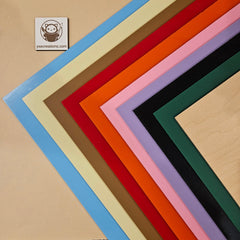
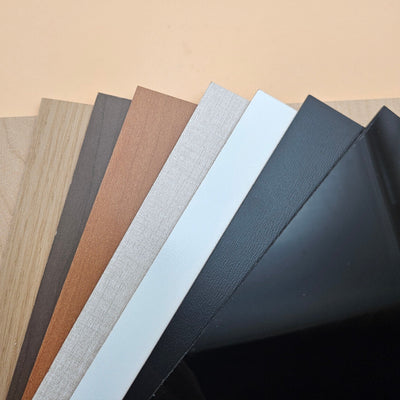
For the visible front panel, 3mm cast acrylic is the sweet spot, thick enough to feel premium, thin enough to cut quickly, and rigid enough to stand without flexing.
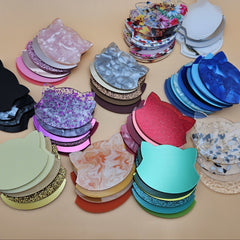
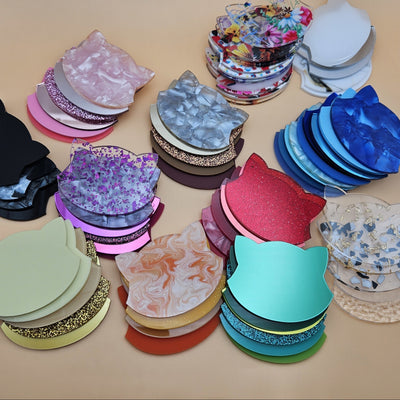
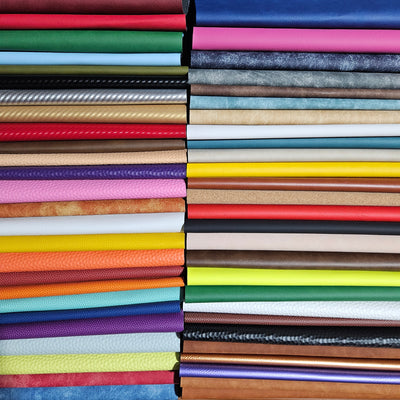
Crystal pearl, frosted, mirror, and metallic finishes all work beautifully. For a wedding or formal event, mirrored gold or rose gold is a classic. For a bar or café, frosted black with white-painted edges looks great under warm lighting.
The stand
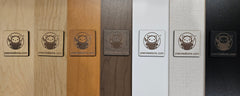
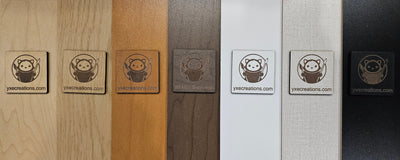
The stand can be cut from the same acrylic as the panel for a matching look, or from laser plywood for a warmer, rustic feel that pairs nicely with farmhouse or boho table settings.
Optional: pattern panels
If you want a decorative back panel, floral, marble, geometric prints, instead of a flat solid color, use next-level UV printed sheets. These are full-color printed acrylic that you can cut to any shape, ideal for elevating a simple table number into a centerpiece.
Optional: 3M adhesive
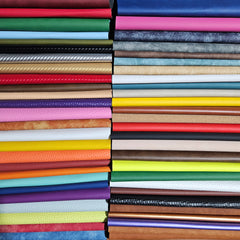
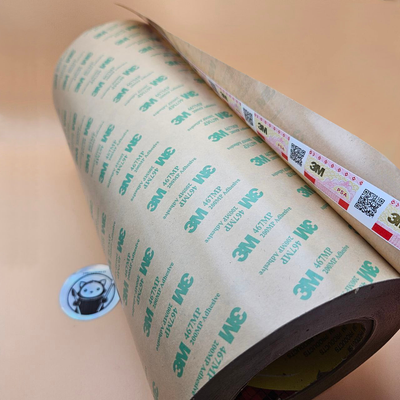
If your design has separate cut-out letters or numerals you want to attach to the panel surface, pre-cut 3M adhesive sheets make alignment painless, peel, stick to the back of each letter, and place.
Understanding kerf (this is the important part)
When a laser cuts a slot, it doesn't remove a zero-width line, it vaporizes a thin strip of material along the cut path. That removed strip is called the kerf. For most laser cutters running 3mm acrylic, the kerf is somewhere between 0.10mm and 0.20mm.
Why kerf matters for slot fit
Your stand has a slot that the panel slides into. If you cut the slot exactly the same width as the panel thickness, the slot will end up *wider* than the panel by twice the kerf, and your panel will wobble.
To get a tight, friction-fit slot, you tell the generator a kerf offset that narrows the slot by the right amount. Our generator labels this "Kerf Offset." A positive value makes the slot tighter.
If your panel won't slide in, decrease the kerf offset. If it wobbles, increase it. One test cut is usually enough to dial it in for your specific machine and material.
Designing your sign with the generator
Open the Standing Sign Generator and select the Table Sign preset (the first tab). This gives you a single-panel design ready to customize.

Step 1: Set your number or text
Click the Panel 1 card to expand it. In the Text field, type the number ("11", "Reserved", "VIP", or whatever you need). Numbers up to 2–3 digits look best with a single panel.
Step 2: Pick a font
Open the Font picker. For wedding/elegant: try a script like Italianno or Great Vibes. For modern/bar: try Cherry Bomb One or Manufacturing Consent. The preview updates live, so try a few.

Step 3: ![]() Choose a panel shape
Choose a panel shape
The Shape dropdown gives you Full Arch, Gothic, Scalloped, Wavy, and plain Rectangle. Arches feel formal; scalloped feels playful; rectangle is clean and modern.
Step 4: Size your panel
Default is 80mm wide × 100mm tall, which is a good size for most table settings. For larger venues or buffet labels, scale up to 100×150mm.
Step 5: Set material thickness and kerf
Scroll to the Stand section. Set Material Thickness to match what you're cutting (3mm if you're using standard acrylic). Set Kerf Offset to 0.10–0.15mm for acrylic.
Step 6: Choose a stand shape
Rectangle is the most stable. Arch matches a curved panel. Oval/circle look softer.=
Step 7: Download your SVG
Click Download SVG at the bottom of the controls. The downloaded file has the panel and stand laid out side by side, ready to import into LightBurn, xTool Creative Space, or any other laser software.

Cutting and assembling

1. Import the SVG into your laser software.
2. Set the cut layer to your material's recommended speed/power.
3. Run the cut.
4. Peel the protective film off both sides of the panel and stand.
5. Slide the panel into the stand slot. It should slide in with light hand pressure and stay put without wobbling.
Troubleshooting
Panel falls out / slot too loose → Increase Kerf Offset by 0.05mm and re-cut a test stand only.
Panel won't slide in / slot too tight → Decrease Kerf Offset by 0.05mm. Or, if it's only slightly tight, lightly sand the bottom edge of the panel.
Edges look frosted/melty → Slow your cutting speed slightly
Make it yours
A few ideas to take this further:
- Mix materials: frosted acrylic panel on a walnut plywood stand is a classic combo
- Engrave a guest name: under the table number
- Cut multiple at once: the SVG nests easily, fit 4–6 onto a single 12×12" sheet
- Match your color scheme: pearl, rose gold, mirror gold, or printed marble panels for upscale events
Happy cutting! 🔥